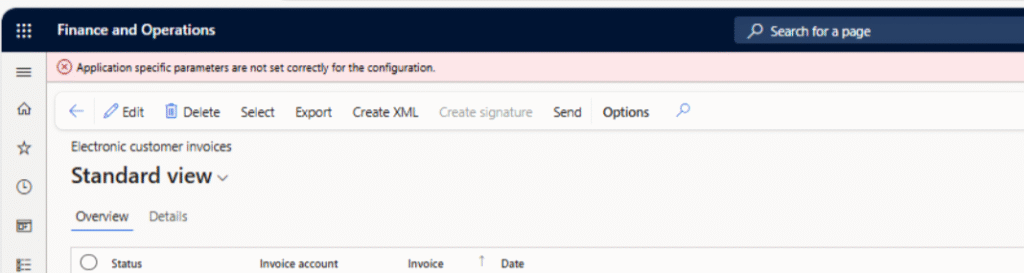
When running a GER (Global Electronic Reporting) report in Microsoft Dynamics 365 Finance and Operations, you might encounter the following error message:
“Application specific parameters are not set correctly for the configuration.”
This error typically indicates that the application-specific parameters have not been properly configured for the selected report format. Fortunately, the fix is simple once you know where to look.
In this article, we’ll walk through the steps to resolve the issue using the Sales invoice (IT) report as an example.
🔍 When Does This Error Occur?
This message usually appears when you attempt to run a GER-based report (like invoices, credit notes, or other regulatory reports) and the system cannot determine the mapping between the report format and the underlying application data.
The root cause: the application-specific parameters have not been activated or confirmed for the correct report version.
✅ Step-by-Step Solution
Here’s how to fix the issue:
1. Navigate to the GER Configuration Page
- Go to Organization administration > Electronic reporting > Reporting configurations
- In the list, locate the relevant report format—for example:
📄 Sales invoice (IT)
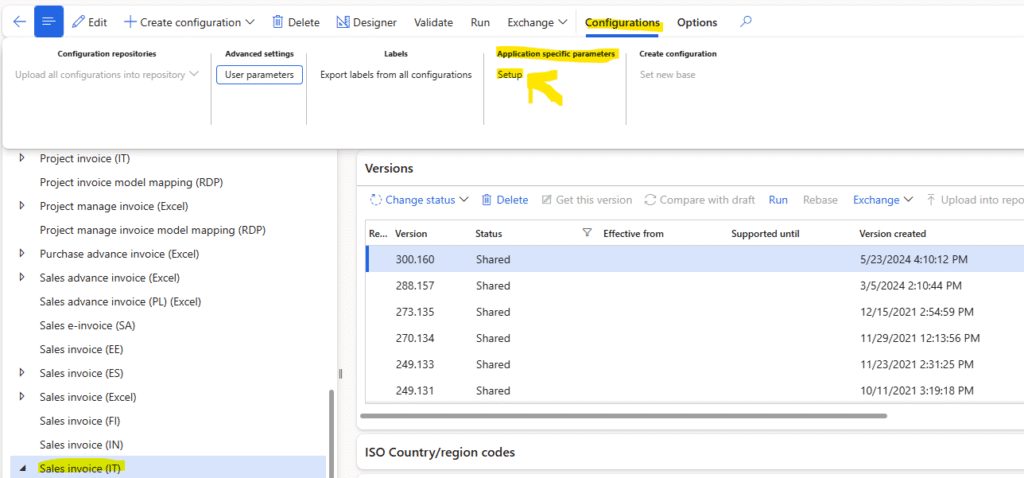
2. Open Application-Specific Parameters
- With the format selected, click on:
Configuration > Application specific parameters > Setup
3. Activate the Correct Report Version
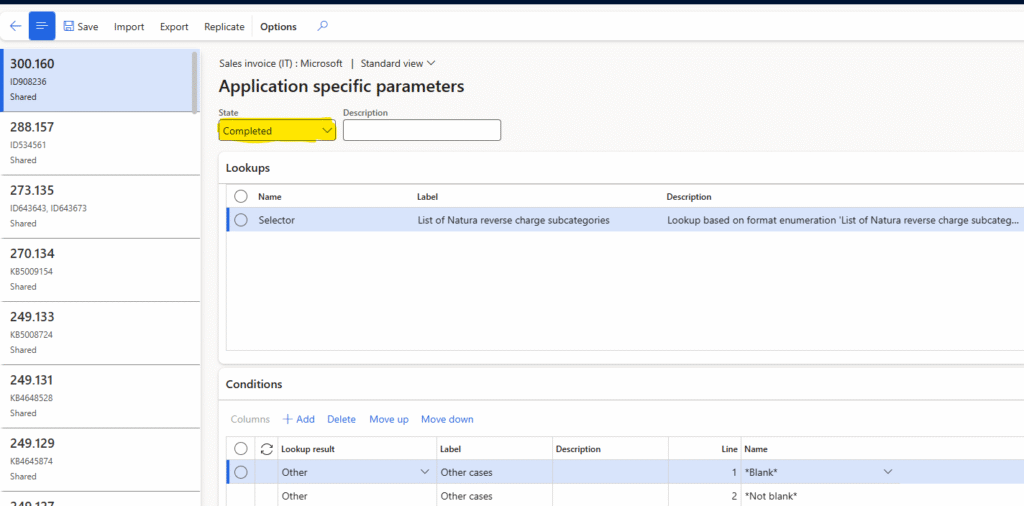
- In the new form, you will see a list of records—one per version of the selected report format.
- Locate the version with the Status = Completed.
- Select this version, then confirm that the status is correctly set to ‘Completed’ in the parameters setup.
This step binds the completed report version to the application-specific logic that knows how to work with your local data structures.
🧪 Example: Sales Invoice (IT)
If you’re running the Italian Sales Invoice GER format and haven’t completed this setup, the error will block report execution.
Follow the steps above to ensure that the application-specific mapping is enabled for the completed version of the Sales invoice (IT) configuration.
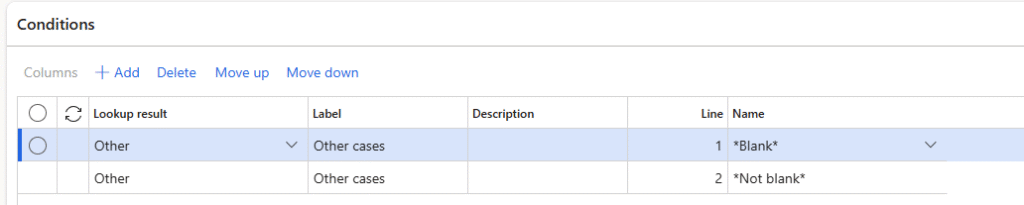
Specifically for the Sales Invoice (IT), Vendor Invoice (IT) and Project Invoice (IT) reports, make sure you have populated the following section:
🧩 Conclusion
The error “Application specific parameters are not set correctly for the configuration.” is a common but easy-to-resolve issue in D365FO when using GER formats. By correctly setting up the application-specific parameters, you ensure that your reports can correctly bind to the application’s data model and run without interruptions.
Have questions or want to automate this setup across environments? Let me know in the comments or contact me directly!